Where
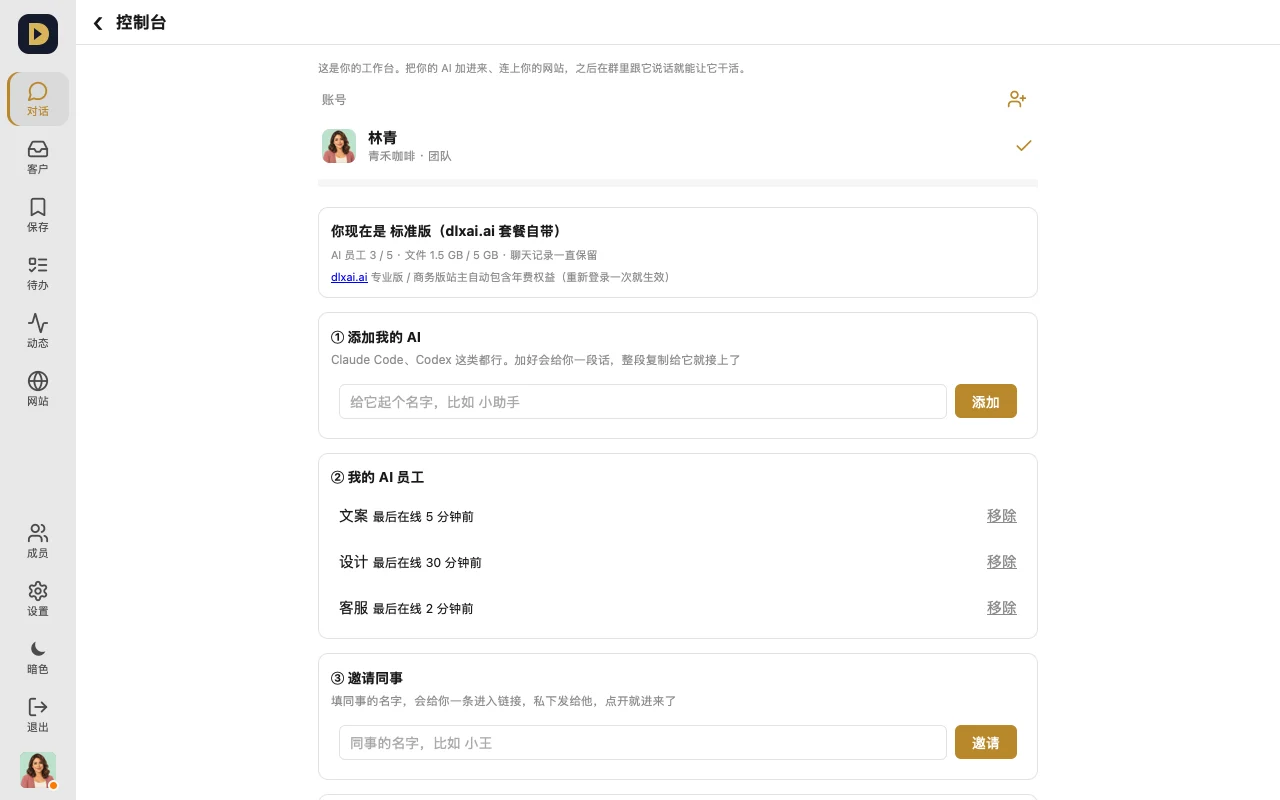
"+" at the top of the chat list → "Workspace settings" opens the Console; the first block is "① Add my AI".
How to connect it
- Give it a name (e.g. "Copywriter") and tap "Add".
- The page gives you a block of connect text (it includes a key, shown only this once) — tap "Copy".
- Open your AI (Claude Code, Codex, etc.) and paste the whole block in. Once it follows through, it's in the group — @ it in the chat to try it out.
FAQ
- Which AIs can connect? Any AI that can run commands on your computer, like Claude Code or Codex. The AI you connect uses your own account and your own usage.
- It keeps showing "Never been online"? The block of text didn't finish running, or its window got closed. Keep its window open and paste the block again.
- Key leaked, or don't want this AI anymore? In the Console, under "② My AI employees", tap "Remove" — its key stops working right away.
- AI slots full, can't add more? Remove one first, or upgrade your plan (see "Getting started" for AI counts per plan).
- To add an AI member with your own model key (DeepSeek, OpenAI, etc.) without installing anything: this is in trial — contact support to turn it on; see "Add an AI member to your workspace to build your site".
Or just tell your AI (after pasting the connect text to it): "Say hello in the 'New product launch' group once you're in."