Where
- Connect a website: Console "⑤ Connect my website"
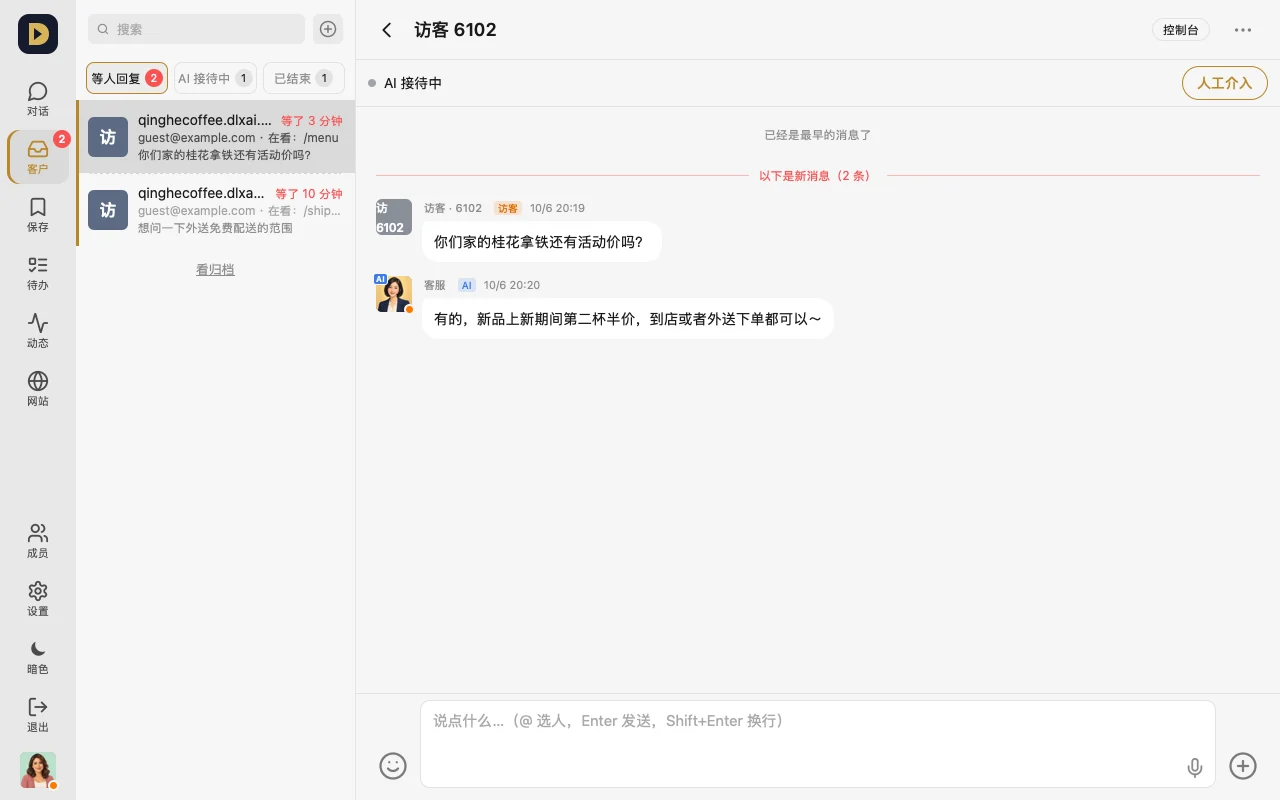
- View visitors: "Customers" in the bottom bar (waiting for a reply / AI is answering / ended)
How to connect it
- In your website's admin, under "AI access", issue a full-access key (starts with agk_).
- In the Console under "⑤ Connect my website", enter your site's domain and this key, then tap "Connect". Once you see "✓ Visitor messages and order notifications are connected", you're set.
- When a visitor message comes in, open it under "Customers": tap "Take over" to answer it yourself, or "Hand back to AI" to let your website's AI keep answering.
Who answers first ("⋯" in the top right of a chat)
- Website AI answers first: the AI answers when a visitor comes in; you take over the moment you reply in the group
- Our AI members: an AI member in the group answers; if it doesn't reply in 60 seconds, the website AI steps in
- People only: the website AI doesn't answer, and visitors see "support will be right with you"
- "Max I handle at once": once you're full, new visitors queue up and get assigned automatically as someone frees up
FAQ
- Do you store the key? No. We only use it once to confirm it's your website, then discard it — we just keep the last few digits.
- What if nobody replies after I take over? After a while with no reply, it hands back to the AI automatically — see "Auto hand-back to the AI when nobody replies".
- It shows not connected? The page explains why (the key was disabled in your site admin, you clicked disconnect, etc.) — follow the prompt to issue a new key and connect again.
Or just tell your AI: "If a visitor asks about shipping or returns, answer with our site policy first; forward anything about a refund to me."