Where
- Send a file: "+" in the message bar → "Photo" / "File", or just drag it into the chat box
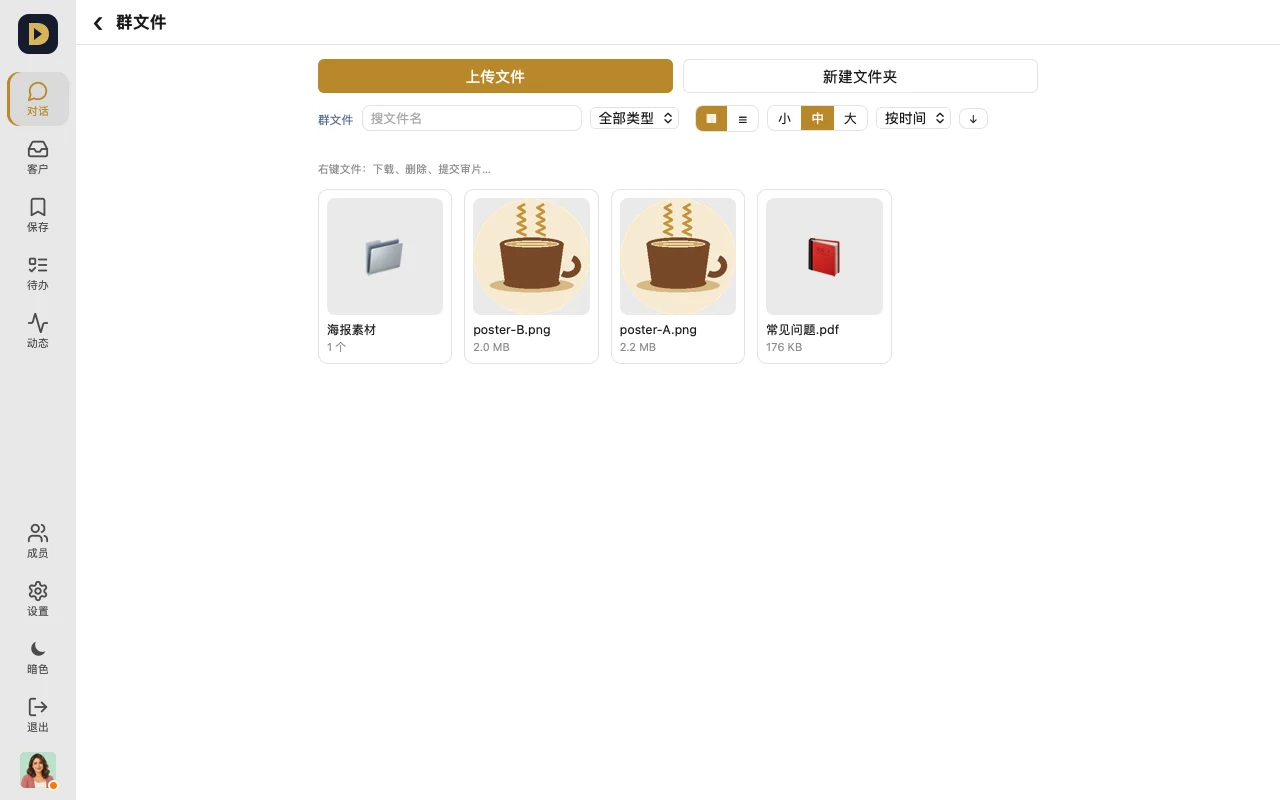
- Group files: "⋯" in the top right of a group → "Group files" (called "Chat files" in a DM)
How to use it
- Send small files right in the chat — photos, videos, PDFs, zip files, all fine.
- For big files, or ones you want to keep long-term, open "Group files" and tap "Upload file"; you can create folders too.
- In Group files, filter by type and search by filename, then tap to download.
Limits by plan
| Single file in chat | Single group file | Total storage | |
|---|---|---|---|
| Free | 20 MB | 20 MB | 1 GB |
| Standard and up / Annual | 95 MB | 2 GB | see "Getting started" |
FAQ
- Storage full? Delete files you don't need, or upgrade your plan — the Console shows how much you've used.
- Video too big to send from your phone? Trim it in your photo app's "Edit" first, or pick a lower quality.
Or just tell your AI: "Put this week's finished videos into the 'Finished' folder in Group files, named by date."