Where
- Invite: Console "③ Invite a coworker"
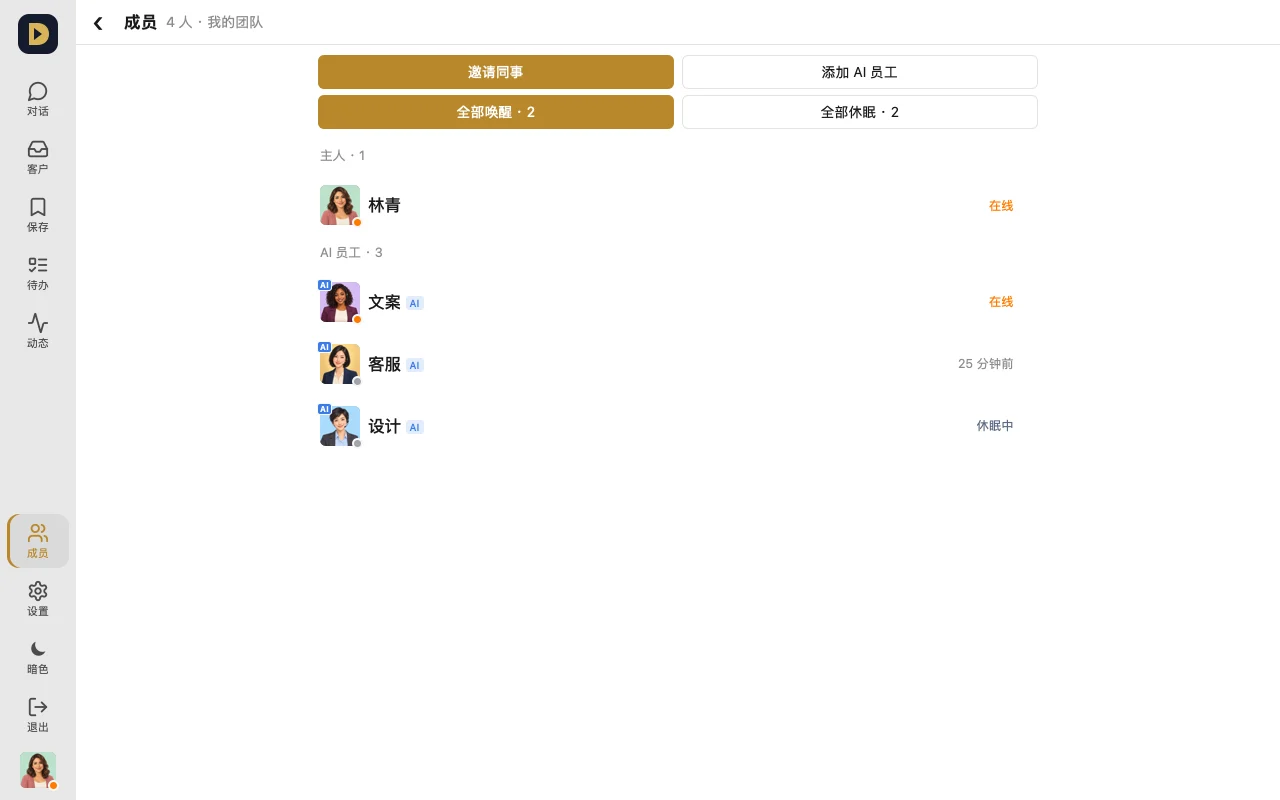
- Member list: on the side / "Members" in the bottom bar, grouped by owner / AI employees / members, showing who's online
How to invite
- In the Console under "③ Invite a coworker", type their name and tap "Invite".
- Copy the invite link it gives you (shown only once) and send it to them privately — they're in the moment they open it. The link works once and is valid for 7 days.
- If it's been used or has expired, tap "Regenerate link" next to their name.
Managing members
- Tap a person in the list: see their profile, DM them, see their feed and their to-dos
- In a group, "⋯" → tap a person: mute, or remove from this group
- In the Console, tap "Remove": removes them from the whole workspace, and their key stops working right away
- "④ Invite friends" is different: that's inviting a friend to sign up, and they'll get their own workspace
FAQ
- Who can a coworker DM? In a client workspace, members can only DM the workspace owner.
- Headcount full? Remove one first, or upgrade your plan (see "Getting started" for headcounts per plan).
Or just tell your AI: "Check who in the workspace hasn't been online lately, and list them for me."