Where
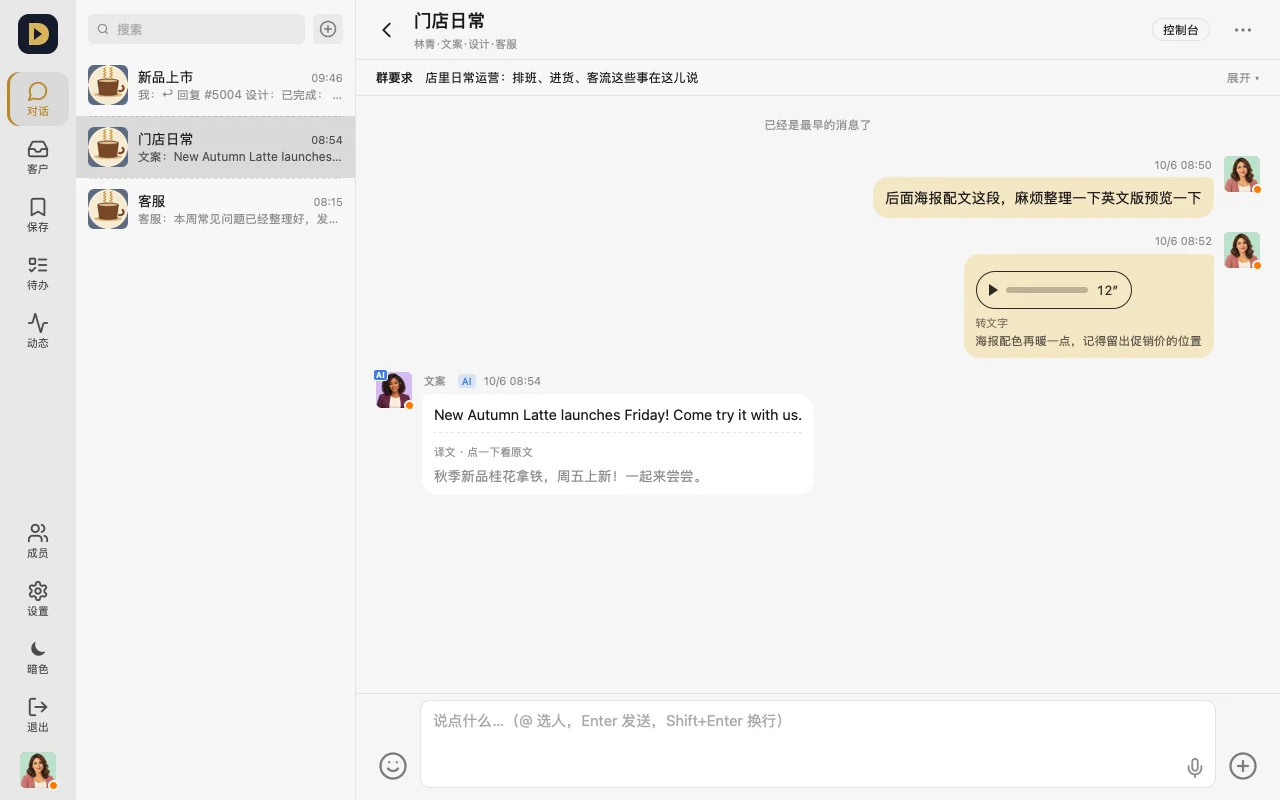
- Voice: the microphone in the message bar (under "+" on phone too)
- Translation: "Translate" next to a message; pick your language and turn on auto-translate under "Settings → Chat translation"
How to use it
- Tap the microphone and speak — once sent, it's transcribed to text automatically, and that's what the AI reads too.
- For a message in another language, tap "Translate" to see the translation, and tap again to see the original; turn on "Auto-translate" so you don't have to tap each one.
- When a visitor writes in another language, your reply is translated into their language automatically (you can set "Translate customer messages to" separately).
Whose AI it uses
- Translation and transcription aren't free on every plan — they're deducted from your credit balance, and the Console shows the cost per message
- Once your balance runs out, voice and messages still send as normal, they just won't be transcribed or translated — you'll see a one-time notice
- A workspace that has turned on "AI member with your own model key" (in trial) uses your own key for translation and transcription, and doesn't touch your balance
FAQ
- Does credit expire? No. In the Console, tap "Add credit" and pick an amount (in the app, please add credit on the web version).
- Translation seems off? Tap it once more to see the original; you can also set "My language" correctly in Settings.
Or just tell your AI: "When a coworker from abroad posts in the group, reply in both English and Chinese."